Lodahl's blog

16 July 2013

LibreOffice is becoming the Swiss army knife in the office

What started as a simple text editor and later became am office suite is actually becoming a very comprehensive set of tools for the daily office work.

LibreOffice is most likely the only application that can open almost any office file format in the world. Legacy and modern - it doesn't matter LibreOffice can handle them. Even some legacy file formats from older versions of Microsoft Office that can't be recognized by supported versions of Microsoft Office can be opened and converted with LibreOffice. Its a well known fact that some corrupted files from legacy Microsoft Office versions can only be opened with LibreOffice. I'm just mentioning a few file formats here: Lotus Word Pro, MS Works, WordPerfect and Cores Draw. Also older versions of office files from outdated Mac computers like Microsoft Word for Mac, Write Now, MacWrite Pro and AppleWorks is now accessible.


Besides that LibreOffice is constantly improving the Microsoft OOXML Import and Export filters as well as for the Microsoft Office binary file formats and the RTF format.

With LibreOffice you can store PDF-files and even embed the original text document or spreadsheet within the PDF. This makes it possible to do later edits of the file directly by loading it into LibreOffice. But there is more that. With the drawing application you can open any PDF-file that is stored without encryption. You can even edit the content and you can merge and split the document as you like. Hereby LibreOffice can replace some of the separate tools that is often used to do these tasks.

With the spreadsheet application Calc you can import CSV files and even arbitrary XML files into a spreadsheet.

LibreOffice runs on almost any thinkable platform ans operating system and its free. Free as in free beer and as in free speech. you can download it from here: https://www.libreoffice.org/download/ .


What more do you want of interoperability?

10 June 2013

Best new feature in LibreOffice 4.1?

I wrote about embedding of fonts in this blogpost: http://lodahl.blogspot.dk/2013/06/libreoffice-41-most-important-new.html

The embedded fonts will most likely result in better interoperability with Microsoft Office and between different OS'. But there is even more coming on that shelf: Even better interoperability.

From the release notes: https://wiki.documentfoundation.org/ReleaseNotes/4.1

  • Import and export of graphical bullets of numberings in the DOC, DOCX and RTF filters.
  • Numerous improvements have been made to the Microsoft OOXML Import and Export filters as well as for the Microsoft Office binary file formats and the RTF format.

These new features (or fixes) is absolutely on my list of favorites in this upcoming version.

05 June 2013

LibreOffice 4.1: Most important new feature?

In an earlier post (http://lodahl.blogspot.dk/2013/05/exiting-new-design-initiative.html) I wrote about the new design features that will be exposed as experimental feature in LibreOffice 4.1.

Among the other new features, there is one that I believe is worth noticing. Embedding fonts in documents will make a interoperability much better - both between Office suites but also between different operating systems as Windows, Linux and Mac.

Under normal circumstances fonts are not embedded in the document, and when the document is opened on another computer that doesn't have the used font installed, then the application will try to replace the fonts "best possible". The problem is that best possible is not always good enough.
If (or when) the fonts are embedded in the document the rendering of the document will always be more accurate as the fonts used is exactly the same as on the original machine.

The feature in LibreOffice works in all modules, text editing, spreadsheet, drawings and presentations. Besides that this opportunity is compatible with Microsoft Office, and no matter if the document is interchanged as .odt or .docx, then the document is opened in the opposite application with the original fonts.

I have performed a small and very simple test both ways (between Linux and Windows, and LibreOffice versus Microsoft Office accordingly) with success.

Embedding fonts is activated for each document in the dialog Files - Properties on the tab Fonts.


This medal has a back side, as the file will become large compared with the same document without embedded fonts. Although I will recommend that fonts are embedded in all documents that will be exchanged between operating systems or office suites.

03 June 2013

Exciting new design initiative


Through out the last couple of years we have seem quite a few suggestions to a new and more modern look and feel for LibreOffice. Some of these initiatives has already found its way into the product, and you can e.g., see a much more light weight ruler in Writer and the whole sphere around using and handling templates has been reworked with a new design. Each of these examples are small steps ahead towards a more modern layout. But when will we see something more like a jump into the future?

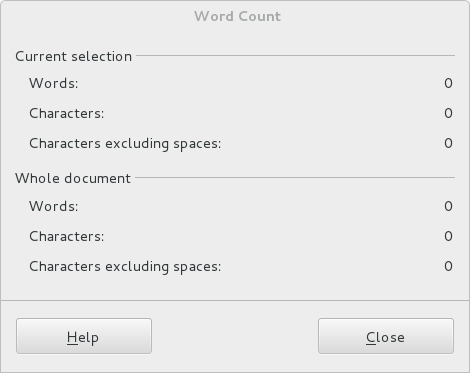
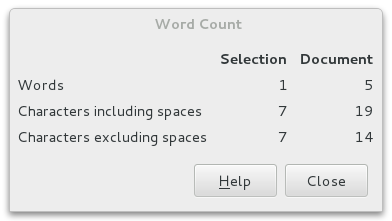
We already got it although you might not actually notice it. More than two hundred dialogues has been recomposed with a completely new development method. This work has a big strategic importance for the community, because in addition to improving the appearance of the UI right now, it opens a lot of long term opportunities.

An example is the word count dialogue. This is how the old method looked:


And with the new WidgetLayout method:

You can read more about this new Widget Layout here: https://wiki.documentfoundation.org/Development/WidgetLayout .

But soon you will see some eye candy too.

Experiments are going on to take advantage of the fact that more and more screens are 16:9 format and not as earlier in 4:3 format. This development is resulting in wider screens both on laptops but also when using traditional desktop computers. This challenges the planning of the application wire frame. The trend goes towards vertical panels or tool bars that takes advantage of the wider screens. This is in contradiction to the Microsoft approach that implements his ribbons under the ceiling taking up space where there is no space.
Illustrating the proportions

I will emphasize that this is a suggestion and not yet a decision and the final implementation will probably take some time.

An example of how the context sensible tools can appear to the right.

Sidebar in Writer
Please notice that these screen shots are not only mock-ups but actual screen shots from a running version on Windows. Please note that this is a very early and absolutely not stable version.

More screen shot below in this article.

The idea is a panel in the right (or left) side of the screen with a bunch of tools. Some tools are static e.g., the Navigator and the Gallery and some others are context sensitive and changes its content from what your cursor is selecting. This is the case with the the properties tool.

You can select between the various tools with the small icons most right. The plan is that these tools will replace some of the traditional toolbars in the top of the screen. Then we take really advantage of the wide screen.

Last but not least it seems that its possible to develop and install extensions that enhance the functionality also in the panel. I have installed two extensions that uses the task pane in earlier versions of LibreOffice and they automatically show up in the icon bar but the extensions doesn't show up in the pane yet. But it really looks good.

The background for this experiment is actually a result of IBM donating Lotus Symphony to Apache Open Office. The donation is licensed in such way that the functionalities can be ported to LibreOffice.

As mentioned earlier this feature is absolutely in a very early stage and it needs a lot of fine tuning to be ready for production. First of all the original code was developed back in 2008 and has not been maintained since. Also it takes quite a lot of effort to make it fit into the LibreOffice code base in a proper and safe way.

More screen shots:
Navigator in the Sidebar

Sidebar in Calc
Gallery in Calc

22 February 2013

OpenClipart.org in LibreOffice - part 3

I have been discussing the subject before and now I just want to tell about our progress. We have managed to use the Task pane to show the dialog so from now the feature is no longer in the Insert - Picture menu. Instead you should use View - Task pane.

It works on Linux but for some reason Windows doesn't show any preview images and it doesn't insert anything either. Don't worry we will figure that out soon.

Bu the way, if you want to give it a try you can get it from the extension website here: http://extensions.libreoffice.org/extension-center/openclipart-org-integration .

Here is a short video to show the concept: