Lodahl's blog: Templates
Showing posts with label Templates. Show all posts

26 September 2015

Templates - Avoid the pitfalls

This article is an addition to my speak at the LibreOffice Conference in Aarhus. You can find the introduction here: http://conference.libreoffice.org/2015/the-program/talks/migration-user-experiance-and-marketing/#Templates%20-%20Avoid%20the%20pitfalls  The presentation and video of the presentation will be available as soon as possible.

Introduction to templates

If you provide your users with good and solid templates they will not only create consistent and beautiful documents. The documents will also be good and solid. One example is that if you produce your templates with care, you can actually make them more interoperable with Microsoft Office. If you know that interoperability is an issue you should avoid specific features that is known to have problems when converting the document to Microsoft Office formats.

Working with templates sounds pretty straight forward if you read the manual. But when it comes to the real world the story might turn a bit on the way to the final result.

I have written about how to develop good and solid templates here: http://lodahl.blogspot.dk/2014/12/making-good-and-solid-templates.html and there is an article about styles here: http://lodahl.blogspot.dk/2015/09/something-about-styles.html.

But when you are done with the development you need to deploy the templates in a safe way.

Deployment

Templates can be deployed in many different ways and what method you should choose depends very much of the circumstances. If you have a lot of different templates that are to be used bu different people in different departments then you have one situation. But if you only have a few standard letters that is to be used by everybody in the company then its another situation. You also need to take into account how often you expect to update the templates and perhaps deploy new ones.

Methods for deployment:
  • Import templates in LibreOffice
  • Store templates in the users template directory
  • Store templates in the program directory
  • Deploy templates via an extension
  • Register a personal folder as template directory
  • Register a file share as template directory
And each of these technical methods even has variations because you can deploy extensions in several different ways.

Import templates in LibreOffice

Importing templates manually is not suitable as this requires manual work.

Store templates in the users template directory

You can deploy templates simply by copying the ott-files into the user directory /user/template/...
This path is also the default place to put imported template files.

Store templates in the program directory
You can of cause store the templates files directly into the program path (/share/template/common/...) as mentioned above, but this is not the recommended way.

Deploy templates via an extension

Its rather easy to wrap up you templates in a nice extension and submit that to your users. By using an extension for handling the templates you are able to keep track of version and variations. But if you expect to make regular updates or even deploy more templates in the future, the packaging procedure is on the other hand a little time consuming.

You can find the details about making extension packages here: https://wiki.openoffice.org/wiki/Non-code_extensions#Templates_Extensions

Register a personal folder as template directory

This method is most likely one of the most commonly used methods. You need to create a folder somewhere on each local computer under the users personal directory. Then you register that location as a new template location. You can do that manually in Tools - Settings - Paths. Select the Templates type and click Edit.


Please note that in this case I have four places for templates and that one of them is the default (with the radio button ticked) and this is where imported templates are copied to.

This setting can be granted all your users easily with an extension that contains a single instruction about this path. It consist of an XML-file with the following content:


You can use variables like $(user) for the users local settings, $(insturl) for the installation path or $(work) for My Documents in Windows environment. You can find them all here: http://api.libreoffice.org/docs/idl/ref/servicecom_1_1sun_1_1star_1_1util_1_1PathSubstitution.html

Details about how to make it into an extension is here: https://wiki.openoffice.org/wiki/Non-code_extensions#Path_Settings

You can also add this path setting using Windows Registry and this can be managed through one or more Group Policies in the Active Directory or similar administration system. You can read more about that on my blog here: http://lodahl.blogspot.dk/2014/10/managing-settings-on-windows.html

After implementing the extension all you need to do is drop the template files into this folder on each computer. The advantage is that the templates are always available but the disadvantage is that you need to drop files on each computer.

Be careful though not to add too many paths as template paths. Multiple paths will slow down LibreOffice in starting up. This is primarily the case if the paths are network drives but also multiple paths on you local machine will slow LibreOffice.

Deploying templates via shared server

If you have a lot of templates and you expect to make multiple new deployments and edits in the future and if you need to deploy different template to different users in different departments you might want to use a shared file server for the purpose. You can create a folder for each department and simply dump the template files into each department folder. Access to the templates can be administrated through the access to each department folder and this is most likely the most common way to deploy multiple templates as its rather simple to administrate when first setup. But be aware that this method over time can lead to conflicts if you use multiple templates with the same name. Also there is a risk that people with access to multiple department folders (e.g., the IT-department) ends up having problems loading any of the templates. The amount of templates simply overloads LibreOffice attempting to generate the template overview.

The advantage of using a shared server is that its very easy for you to maintain the content. If you need to deploy a new template or change the content of another, you can simply just drop a new file on the server and it will be available for all users immediately.

It IS possible to register an URL as template path (HTTP-address) but personally I couldn't make it work most likely because of network latency. LibreOffice becomes very slow when trying to generate the template overview, and in some cases no templates where shown at all.

Conclusion

The method to use depends very much on the circumstances. if you have many templates and you expect to maintain them regularly in the future, then the recommended way will be to deploy the templates on a shared file server and add the path to the templates with an extension.

Further ideas

To avoid network latency its possible to put templates on an ownCloud server and sync the files to each computer. The folder where ownCloud syncs can then be registered as template folder. That way you can distribute templates without thinking of network latency.

Further topics

Now I will point out some technical details that are very important to know before you begin.

Remove unused pre-installed templates

LibreOffice comes with some pre-installed templates ands some of them are in English. A resume with English text and even pre-filled names are not suitable for a business environment and you might want to remove them in the first place. The templates are located in the program directory in the path /share/template/common/... but you should have in mind that some of the Impress templates and layouts are suitable to leave as they are.

Naming templates

Each template has a name. The name is what you see below the preview in the templates overview. The template name is given in the template file under File - Properties - Description tab in the Title field. Be careful about naming your templates. If you have multiple templates with the same name then you will only find one of them in the templates overview and in the menu "New document from template". If you have a template in your environment but can't find it in the templates overview then its most likely because another template exist with the same name. And you have no tools to identify the problem.

Be aware that when you create a new template from another template then the new template will automatically inherit the name from the original template. This is very unfortunate as this results by default in a conflict. The second template (or the original) will vanish from the templates overview.

Organizing templates in folders

If you identify a path as your template folder, that path will be registered and any template file in the folder will be visible for the user in "Templates" from the Start Center. But if you create sub-folders in the template folder these folders will be visible as separate folders along with My templates and NOT within My templates. Please not that you can NOT establish cascading folders with multiple levels. All you can do is to choose not to put templates in My templates but in a separate folder.


Its unclear when a new template in a custom path actually turns up in the templates overview. Sometimes it requires a restart of LibreOffice and sometimes even a restart of the computer. Also the overview of templates doesn't seem to be in sync with the Edit template overview.
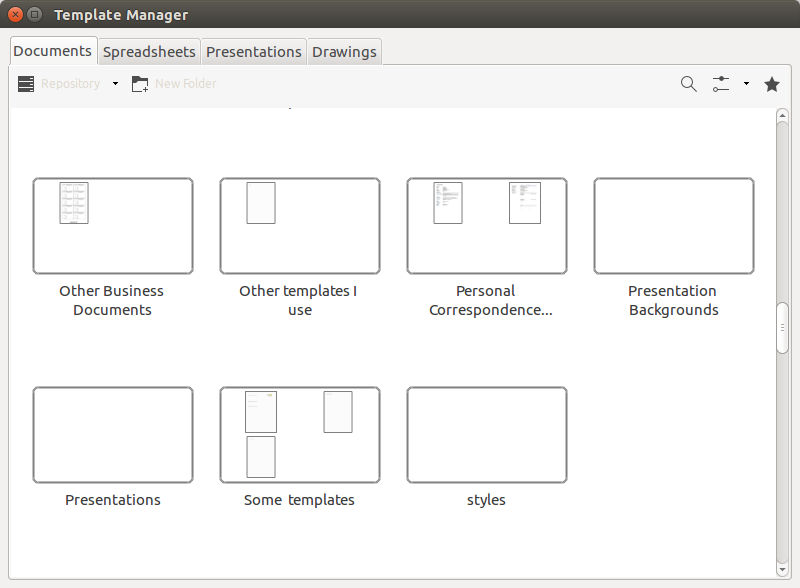


It is possible to put a link in a template folder that refers to a template somewhere else. This means that you can put templates in one place (e.g., on a server) and put links or references to these templates where the templates belongs (e.g., on the local machine).

Inherit styles from the template

Documents can inherit styles from their template. When you create a new document from a template, that document is still connected to the original template. In case you open the document at a later time, and the template has changes to its styles in the meantime, then you will be asked if the document should inherit the changes (update styles from the template) or not.


This is very useful also because one template can inherit from another template.

Unfortunately its not logical LibreOffice determines what template to inherit form. It seems to be based on the path- and file name alone and NOT with the name. Therefor its very important not to change file name or move any templates after deployment.

The meta data in the ODT-file looks like this:


When it comes to inheriting styles from one template to another I prefer NOT to inherit automatically as I don't find it reliable. in stead I load styles manually with Load styles. Although this dialog has a pretty annoying behavior.




09 December 2014

Making good and solid templates


When your organization is migrating from Microsoft Office to LibreOffice its important that you provide the users with some good and robust templates. If your users are using LibreOffice in parallel with Microsoft Word or if your users are collaborating with other users outside the organization, then your templates must take this into consideration. The templates must in this case be extra robust when it comes to interoperability.

Why not just open your old .DOT or .DOTX templates in LibreOffice and save the result at .OTT?

Well this is exactly one of the most common mistakes. Making templates for Writer is NOT converting Word templates. Its building new templates from scratch using the best tool for it: LibreOffice. If you choose the short cut and converts Word templates to LibreOffice templates, you will get into trouble. Big trouble.

Experience show that lack of interoperability often comes down to poor quality templates.

Another advise: Don't try to make LibreOffice look like Word and don't try to make your templates look like Word templates. You can't fool the users.

If you are the expert in Word you might not be the right person to develop LibreOffice templates. Use LibreOffice as LibreOffice and don't pretend its Word.

Before you begin

Try to work smart - not hard. Analyze the existing Word templates into categories of logically connected templates. Does any of the templates have common properties? Identify the commons and put the templates into categories or “families”. For examples if you have several letter templates with different content or in different languages, they are most likely using the same font types and sizes. Identify these common properties and take notes.

Also try to get your hands on the company design strategy or design guidelines if they exist. Large organizations often have something in the communication department. Best case is if you can find a design and style guide for letter with precise measurements and color identification.

Ask the provider of the original Word templates to also give you a PDF-version of each template. That give both you and the owner of the templates a baseline reference for the layout and you can avoid later discussions about pixel precise position of an object somewhere. You can make the reference PDF your self, but its better and more correct if you can get it from the owner of the templates.

Think of who the users are

Don't believe that the IT department is qualified to define the requirements. First of all because this group of people in general has a higher understanding of how IT works and as a consequence of that are actually too high qualified. The average user should be setting requirement for the functionality while the department in charge of communication (who ever they are) should set requirements for the look and feel of the templates.

Users are different. Some users are very well educated and has a master in text editing. Others are just office clerks and has no idea of how text editing and office automation works. Your templates should be possible to operate by the people using them. Some templates can be very sophisticated and with a high level of automation while others - letter templates for example - should be as simple as possible to use.

Create the master

From there you can create what I use to call the master template. This template will actually not be used by any one else than template developers and it contains only the common styles and measurements. Only what can be defined in styles should be part of the master. In the future when you start creating new templates you can use the master template as the template. And when you need to make adjustments to the common properties, you can do it once in the master template and load the changes into all other templates.

Logo and objects

Always try to get the original source files in stead of trying to pick from the Word templates. When you resize images - and even if you are using high quality tools for it - will loose quality. If possible you should get the logos in some vector format like SVG or a Photoshop source file. Then you can compile image versions in the exact size and quality that you need. A logo compiled for the web site is normally compressed and optimized for smaller file size and is not good enough quality for a printed letter.

Interoperability

Making templates that are interoperable with Word is not easy. It requires a lot of work and a lot of testing. And one thing you must remember, is the fact that LibreOffice and Microsoft Office are two different applications with two different file formats. Conversion between the two are getting better for each version of LibreOffice, but its not perfect and it will most likely never become perfect. Document conversion is therefore to be considered a deviation from the normal. A special situation that should be taken special care of.

And round trip conversion? Forget it. It doesn't work.

Cross platform templates

LibreOffice is a cross platform application and it is possible to develop templates that works on multiple platforms. Most organizations has policies for this, but its a good idea to take the issue into consideration anyway. It might turn out that there actually are a few Mac computers even if the policy says the opposite. And it doesn't require much more than a thought now and then.

Cross platform templates has in general higher quality than templates that only works on one platform.

The dilemma

Do we want the LibreOffice templates to look pixel to pixel as the Word templates does?
Most would say yes, but I say no. I agree that it helps people to understand how it works if it works the same today than it did yesterday. But this pixel precise requirement is a misunderstanding. For more than two reasons.

First of all: Is our Word templates as good as we think? Perhaps they are but they might have been developed many years ago. So if we create new templates as exact copies of the existing ones we might inherit some legacy misunderstandings and lack of quality. So lets take the opportunity to make even better, more modern and robust templates now we are migrating. We might never get this opportunity again.

One of the main rules to remember while it comes to interoperability is, that the more you customize the less interoperable the template will be. So while you are trying to make them look exactly equal, you will loose the interoperability.

Try to stick to the defaults.
An example:
Footnotes in Writer looks pretty different from similar footnotes in Word. But they are quite easy to make interoperable if you leave them with the default settings. You can though make footnotes in Writer look precisely as they does in Word. But if you do, they will not survive a round trip conversion.

Same thing can be said about indexes and other advanced office automation features.

Making templates that are interoperable doesn't mean they look like the Word templates. It means that they can work across the two applications.

Images and objects

Images like the company logo and objects like a text box with the company contact information and information about the sender of a letter are central to any templates. These things are on the other hand rather difficult to make in a way, that are acceptable after conversion to lets say Microsoft Word. The key problem is not the positioning (the exact place on the paper) but to what they are positioned. Its the anchor that matters. The reason for this problem is that Word and Writer has two different ways of thinking when it comes to this anchoring problem. The main rule is to use the same anchoring for objects that are placed together. If the text box with the address information is anchored "to page" then the logo just above should not be anchored "to paragraph". Use the same anchor method for all objects that are grouped together and you will make things much easier to develop, maintain and use.

In general you should ask you self if the object is to be positioned on a specific position on the page or at a position relative to something. A company logo on a letter template or a text box with the senders address is to be positioned at a specific position on the page and therefor anchored "to page". In case the object are supposed to be repeated on several pages it should be anchored “to paragraph” in the page header or footer but with measurement relative to the page.

Macros

Try to avoid using macros. Many templates developed for MS Office 2003 has embedded or referenced macros to obtain some advanced functionality. Using macros implies a risk that the document in special situations doesn't react as expected simply because the macro is not available or macro execution is disabled for security reasons. Using macros should not be necessary with modern office applications.

In case you have systems of macros running and being dependent on other macros being available, you should consider how to obtain the same functionality without using an office suite at all. Such systems of several macros are not suitable for business environments and should in most cases be developed as part of a document management system or similar. Putting business logic into a complex system of templates and macros is risky.

Tools

Generate content

When you design templates its important that you test the template with some content. For that purpose I have developed an extension to LibreOffice Writer that can generate large amounts of Lorem ipsum text. You can pick the extension for free here:
As an alternative you can use the built in dummy text (writer dt and hit F3).

Word

Use word to see how the original templates works, looks and reacts.
Export the resulting document to PDF for comparison.

LibreOffice

Use LibreOffice to develop new templates. But before you begin; learn to use it. You will discover that the first three or four attempts to make a good template fails. But during the work you will learn from experience and your failures.
I recommend that you use the same operating system while developing the templates as the regular users of the templates will be using. LibreOffice is independent from platform but there are some minor differences from OS to OS. The safest approach is to use the same OS.

Compare result

Compare the result (PDF) with reference output from Word with diff-pdf. 
Compare output

With this nifty tool you can merge two PDF files as overlay and compare pixel precise position of e.g., the logo and margins. Get it here: https://github.com/vslavik/diff-pdf


04 December 2008

Extension: Template changer

With this extension you wll see to new menu items in Files - Templates that makes it possible for you to change template for one document or for all documents in a specific folder. All styles in the document(s) will be replaced by styles from the newly loaded template.

This extension is translated into several languages.

Template Changer: http://extensions.services.openoffice.org/project/templatechanger
More extensions: http://extensions.services.openoffice.org/