Lodahl's blog

26 September 2015

Templates - Avoid the pitfalls

This article is an addition to my speak at the LibreOffice Conference in Aarhus. You can find the introduction here: http://conference.libreoffice.org/2015/the-program/talks/migration-user-experiance-and-marketing/#Templates%20-%20Avoid%20the%20pitfalls  The presentation and video of the presentation will be available as soon as possible.

Introduction to templates

If you provide your users with good and solid templates they will not only create consistent and beautiful documents. The documents will also be good and solid. One example is that if you produce your templates with care, you can actually make them more interoperable with Microsoft Office. If you know that interoperability is an issue you should avoid specific features that is known to have problems when converting the document to Microsoft Office formats.

Working with templates sounds pretty straight forward if you read the manual. But when it comes to the real world the story might turn a bit on the way to the final result.

I have written about how to develop good and solid templates here: http://lodahl.blogspot.dk/2014/12/making-good-and-solid-templates.html and there is an article about styles here: http://lodahl.blogspot.dk/2015/09/something-about-styles.html.

But when you are done with the development you need to deploy the templates in a safe way.

Deployment

Templates can be deployed in many different ways and what method you should choose depends very much of the circumstances. If you have a lot of different templates that are to be used bu different people in different departments then you have one situation. But if you only have a few standard letters that is to be used by everybody in the company then its another situation. You also need to take into account how often you expect to update the templates and perhaps deploy new ones.

Methods for deployment:
  • Import templates in LibreOffice
  • Store templates in the users template directory
  • Store templates in the program directory
  • Deploy templates via an extension
  • Register a personal folder as template directory
  • Register a file share as template directory
And each of these technical methods even has variations because you can deploy extensions in several different ways.

Import templates in LibreOffice

Importing templates manually is not suitable as this requires manual work.

Store templates in the users template directory

You can deploy templates simply by copying the ott-files into the user directory /user/template/...
This path is also the default place to put imported template files.

Store templates in the program directory
You can of cause store the templates files directly into the program path (/share/template/common/...) as mentioned above, but this is not the recommended way.

Deploy templates via an extension

Its rather easy to wrap up you templates in a nice extension and submit that to your users. By using an extension for handling the templates you are able to keep track of version and variations. But if you expect to make regular updates or even deploy more templates in the future, the packaging procedure is on the other hand a little time consuming.

You can find the details about making extension packages here: https://wiki.openoffice.org/wiki/Non-code_extensions#Templates_Extensions

Register a personal folder as template directory

This method is most likely one of the most commonly used methods. You need to create a folder somewhere on each local computer under the users personal directory. Then you register that location as a new template location. You can do that manually in Tools - Settings - Paths. Select the Templates type and click Edit.


Please note that in this case I have four places for templates and that one of them is the default (with the radio button ticked) and this is where imported templates are copied to.

This setting can be granted all your users easily with an extension that contains a single instruction about this path. It consist of an XML-file with the following content:


You can use variables like $(user) for the users local settings, $(insturl) for the installation path or $(work) for My Documents in Windows environment. You can find them all here: http://api.libreoffice.org/docs/idl/ref/servicecom_1_1sun_1_1star_1_1util_1_1PathSubstitution.html

Details about how to make it into an extension is here: https://wiki.openoffice.org/wiki/Non-code_extensions#Path_Settings

You can also add this path setting using Windows Registry and this can be managed through one or more Group Policies in the Active Directory or similar administration system. You can read more about that on my blog here: http://lodahl.blogspot.dk/2014/10/managing-settings-on-windows.html

After implementing the extension all you need to do is drop the template files into this folder on each computer. The advantage is that the templates are always available but the disadvantage is that you need to drop files on each computer.

Be careful though not to add too many paths as template paths. Multiple paths will slow down LibreOffice in starting up. This is primarily the case if the paths are network drives but also multiple paths on you local machine will slow LibreOffice.

Deploying templates via shared server

If you have a lot of templates and you expect to make multiple new deployments and edits in the future and if you need to deploy different template to different users in different departments you might want to use a shared file server for the purpose. You can create a folder for each department and simply dump the template files into each department folder. Access to the templates can be administrated through the access to each department folder and this is most likely the most common way to deploy multiple templates as its rather simple to administrate when first setup. But be aware that this method over time can lead to conflicts if you use multiple templates with the same name. Also there is a risk that people with access to multiple department folders (e.g., the IT-department) ends up having problems loading any of the templates. The amount of templates simply overloads LibreOffice attempting to generate the template overview.

The advantage of using a shared server is that its very easy for you to maintain the content. If you need to deploy a new template or change the content of another, you can simply just drop a new file on the server and it will be available for all users immediately.

It IS possible to register an URL as template path (HTTP-address) but personally I couldn't make it work most likely because of network latency. LibreOffice becomes very slow when trying to generate the template overview, and in some cases no templates where shown at all.

Conclusion

The method to use depends very much on the circumstances. if you have many templates and you expect to maintain them regularly in the future, then the recommended way will be to deploy the templates on a shared file server and add the path to the templates with an extension.

Further ideas

To avoid network latency its possible to put templates on an ownCloud server and sync the files to each computer. The folder where ownCloud syncs can then be registered as template folder. That way you can distribute templates without thinking of network latency.

Further topics

Now I will point out some technical details that are very important to know before you begin.

Remove unused pre-installed templates

LibreOffice comes with some pre-installed templates ands some of them are in English. A resume with English text and even pre-filled names are not suitable for a business environment and you might want to remove them in the first place. The templates are located in the program directory in the path /share/template/common/... but you should have in mind that some of the Impress templates and layouts are suitable to leave as they are.

Naming templates

Each template has a name. The name is what you see below the preview in the templates overview. The template name is given in the template file under File - Properties - Description tab in the Title field. Be careful about naming your templates. If you have multiple templates with the same name then you will only find one of them in the templates overview and in the menu "New document from template". If you have a template in your environment but can't find it in the templates overview then its most likely because another template exist with the same name. And you have no tools to identify the problem.

Be aware that when you create a new template from another template then the new template will automatically inherit the name from the original template. This is very unfortunate as this results by default in a conflict. The second template (or the original) will vanish from the templates overview.

Organizing templates in folders

If you identify a path as your template folder, that path will be registered and any template file in the folder will be visible for the user in "Templates" from the Start Center. But if you create sub-folders in the template folder these folders will be visible as separate folders along with My templates and NOT within My templates. Please not that you can NOT establish cascading folders with multiple levels. All you can do is to choose not to put templates in My templates but in a separate folder.


Its unclear when a new template in a custom path actually turns up in the templates overview. Sometimes it requires a restart of LibreOffice and sometimes even a restart of the computer. Also the overview of templates doesn't seem to be in sync with the Edit template overview.
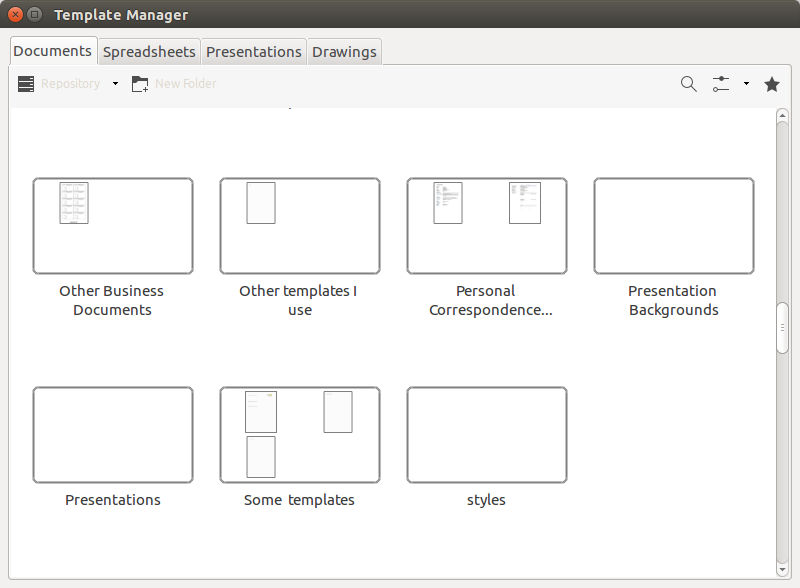


It is possible to put a link in a template folder that refers to a template somewhere else. This means that you can put templates in one place (e.g., on a server) and put links or references to these templates where the templates belongs (e.g., on the local machine).

Inherit styles from the template

Documents can inherit styles from their template. When you create a new document from a template, that document is still connected to the original template. In case you open the document at a later time, and the template has changes to its styles in the meantime, then you will be asked if the document should inherit the changes (update styles from the template) or not.


This is very useful also because one template can inherit from another template.

Unfortunately its not logical LibreOffice determines what template to inherit form. It seems to be based on the path- and file name alone and NOT with the name. Therefor its very important not to change file name or move any templates after deployment.

The meta data in the ODT-file looks like this:


When it comes to inheriting styles from one template to another I prefer NOT to inherit automatically as I don't find it reliable. in stead I load styles manually with Load styles. Although this dialog has a pretty annoying behavior.






Something about styles

Styles are much more than defining the look and feel of text in a paragraph. Its almost everything about how paragraphs behave in the context. A Paragraph style for example defines how words are hyphenated and in what language the text in the paragraph should be spell checked.

Remember also to take advantage of the benefits of Page styles and Frame styles.

Page styles are mostly used to setup the general design of how the page is looking, but its also very convenient when it comes controlling the overall document pagination.

Frame styles is not commonly used (at least i think) witch is actually a pity. Especially if you use templates to control you document layouts it gives you rather comprehensive methods to control the look and feel when it comes to consistency. If you create new frame styles for different purposes, you can completely control the layout of the content in the documents. For example you can define two or three different image styles (one for small logo'ish images, a second for photos and a third for drawings and illustrations). Each type can have different behaviors regarding anchor point, size and even position. Also you can control how text wraps around each type. The same is relevant for OLE objects and frames.

Only remember that new custom styles doesn't have any effect unless the user manually assigns them to the objects.

Avoid using list styles
Yes but avoid using it. It doesn't work! According to the documentation its possible to design and setup custom bullets and numbering styles but this area of the software is so buggy that its completely useless. Sorry to say that but thats how it is.

08 July 2015

Something about styles in LibreOffice

Styles are much more than defining the look and feel of text in a paragraph. Its almost everything about how paragraphs behave in the context. A Paragraph style for example defines how words are hyphenated and in what language the text in the paragraph should be spell checked.

Remember also to take advantage of the benefits of Page styles and Frame styles.

Page styles are mostly used to setup the general design of how the page is looking, but its also very convenient when it comes controlling the overall document pagination.

Frame styles is not commonly used (at least i think) witch is actually a pity. Especially if you use templates to control you document layouts it gives you rather comprehensive methods to control the look and feel when it comes to consistency. If you create new frame styles for different purposes, you can completely control the layout of the content in the documents. For example you can define two or three different image styles (one for small logo'ish images, a second for photos and a third for drawings and illustrations). Each type can have different behaviors regarding anchor point, size and even position. Also you can control how text wraps around each type. The same is relevant for OLE objects and frames.

Only remember that new custom styles doesn't have any effect unless the user manually assigns them to the objects.

List styles

Yes but avoid using it. It doesn't work! According to the documentation its possible to design and setup custom bullets and numbering styles but this area of the software is so buggy that its completely useless. Sorry to say that but thats how it is.

16 February 2015

Spelling in Malawi

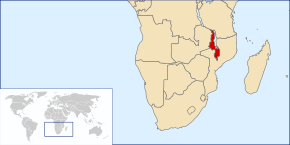
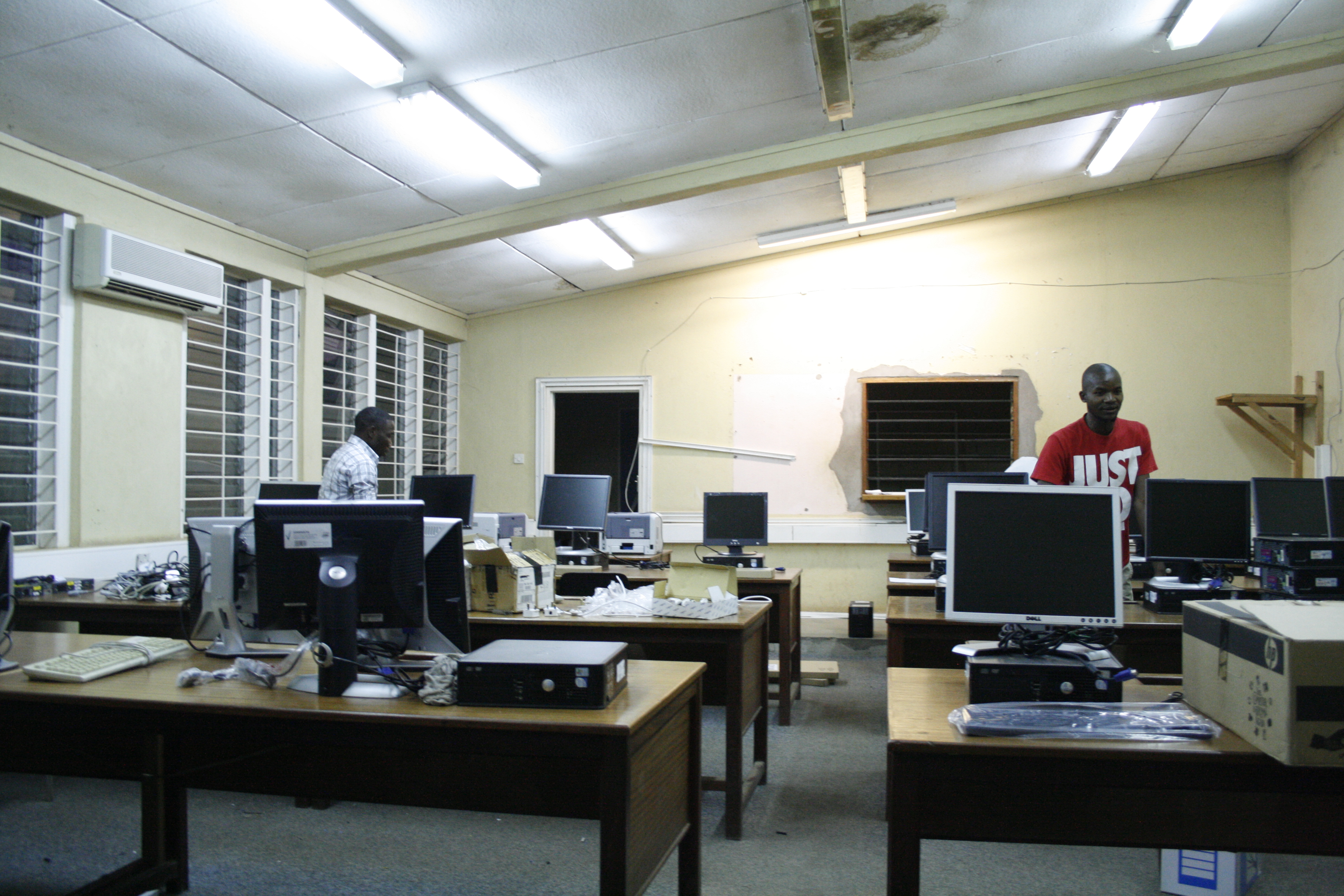
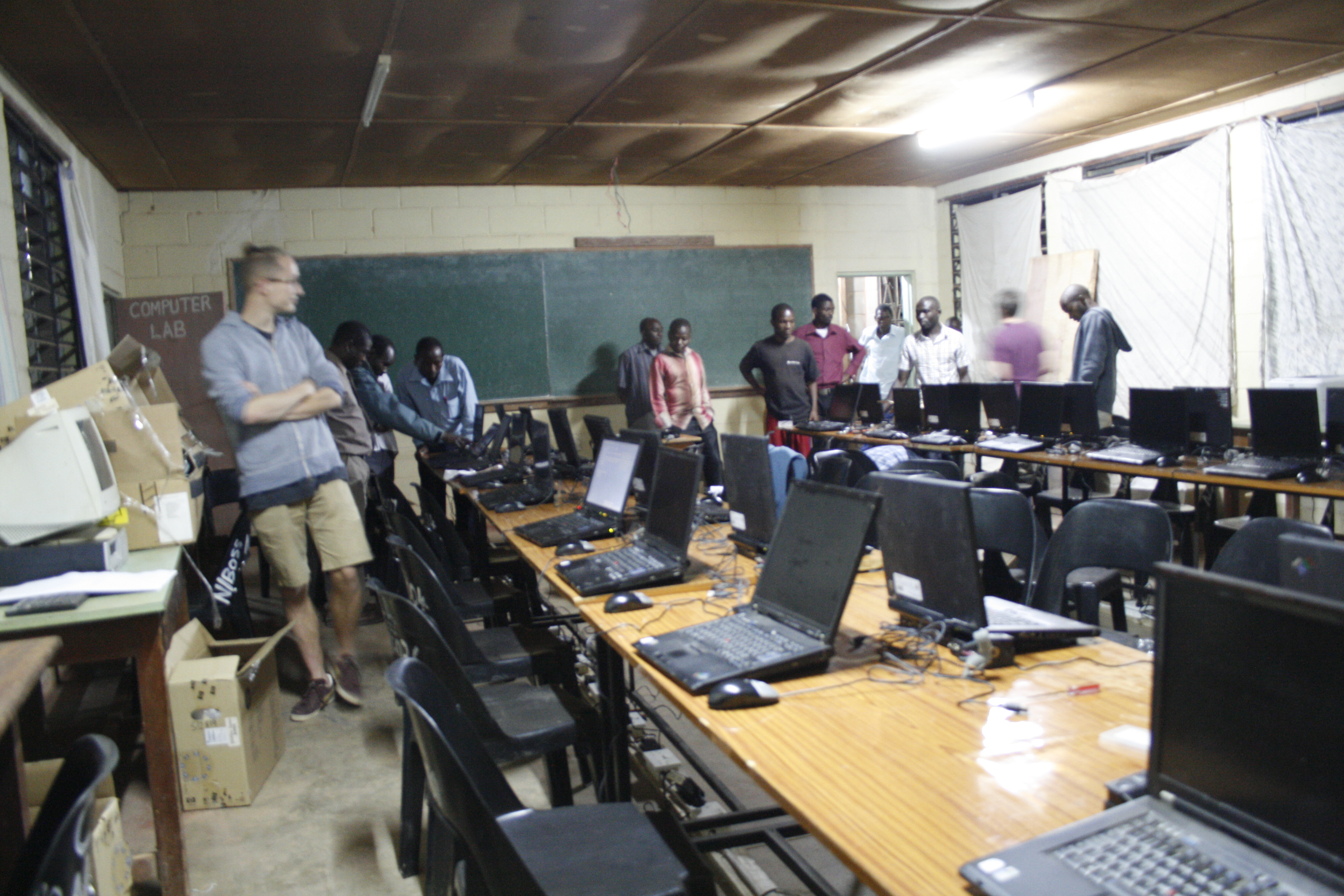
This weekend I was contacted by my good friend Ove Larsen, from the organization FAIR, that are currently working in Malawi to prepare computers for use in high schools. Computers that are disposed in Denmark, but which can easily be used by students in the third world. The message was about compiling a spellchecker in LibreOffice for the language Chichewa, which is the main language in Malawi. Malawi is on the UN top-10 list of least developed countries, and there exists no official dictionary.

The starting point was an old American priest who many years ago manually typed 50,000 words into an RTF-file.

Benjamin Bach, who is also in Malawi on behalf of FAIR, first made a prototype, as Esben Aaberg quickly formed into a useful dictionary.

Dictionaries are parts of the efforts to make information technology more relevant and accessible. Open source is absolutely fundamental, and schools in the projects enjoying the results and expressed great enthusiasm for, among many others; Ubuntu, Wikipedia and LibreOffice. The latter is now officially supported in the examination at secondary schools.

The inquiry from Malawi was passed to our local expert, Esben Aaberg, who after a few hours of work got the dictionary to work. Unfortunately dictionaries can not be registered without the language been known by LibreOffice. Instead, Esben "cheated" by using a language code from another language. Of course we need the language Chichewa registered, but here and now, it works after all.

About FAIR

Every year hundreds of thousands of computers are discarded here in Denmark. Computers that are discarded because they are not fast enough, don't have enough capacity etc. We buy new computers because we want something that is faster and more modern, with new features and functions. And they are rarely broken ... In the third world such a computer is as good as a new one!

Schools, educational institutions, health care, etc. in developing countries have a great need for this technology to become part of the information society globally. Information technology is an important prerequisite for development within democracy, education and health.

About FAIR: http://www.fairdanmark.dk/en/
About Malawi: http://en.wikipedia.org/wiki/Malawi
About Chichewa (Nyanja): http://en.wikipedia.org/wiki/Chewa_language

09 February 2015

Is LibreOffice better than the competitor?


One of the most common objections to open source applications such as LibreOffice is that there may not be quite the same features in open source programs. They are simply not good enough - it is said.

Let's have a look at some of the areas where LibreOffice is actually BETTER than the competitor Microsoft Office.

PDF

PDF is one of LibreOffice's very strong areas. Here are a few examples:
  • With LibreOffice you can create PDF-files of very high quality. In fact, such high quality that they live up to most government requirements for PDF files for document exchange. It's the special document format called PDF/A-1a. PDF/A-1a has two particular advantages: they can be read by machines, so for example a screen reader (used primarily by blind people) and that they are self-explanatory, making them completely independent of software from one vendor. The latter is important for documents that are to be long time archived. In a 100 years from now, it is not certain that [insert a product name here] exists.
  • With LibreOffice you can (with the drawing application Draw) make corrections to existing PDF files. For instance you can do what is normally called merge-and-split (e.g., you can pick a single page from one PDF file and paste thar page into another PDF). You can actually do minor changes to the content itself.
  • It is possible to export to PDF with comments (comments are converted to PDF comments).
  • With LibreOffice, you can save the editable ODF file as part of the PDF file. The result is a rather large PDF file, but you can open it with LibreOffice and edit the content. This also applies if it is a spreadsheet.
  • With LibreOffice, you can create PDF forms with input fields.
  • With LibreOffice you can sign PDF files digitally if you have a digital signature.

Import filters

Another of LibreOffice's very powerful features is all import filters. LibreOffice can open virtually all relevant file types, including old Microsoft file types, that even Microsoft Office can't open.
Here are some examples:
  • LibreOffice supports the SVG-formatet. Inserted SVG-images can be ediited directly from e.g., Incskape through the contect emnu "edit with external tools...". After editing the image with Inkscape you can save the changes back directly to the LibreOffice document.
  • Import of graphic formats: DXF, MET, PBM, PCD, PCX, PGM, PPM, PPM, RAS, SGF, SVM, TGA, XBM, XPM.
  • Import of MacOS older vector and bitmap graphics formats: Beagle Works, ClarisWorks, Great Works, MacPaint, MacWorks, Super Paint, MacDraw, MacDraw II, ragtime for Mac 2-3.
  • Importing video and audio formats FLAC Audio flac, Flash Video (flv), Matroska Media (MKV), OGG Audio, Ogg Video, Quicktime Video, WebM Video, Real Audio (.ra), RealMedia (.rm), Digital video (.dv) Audio Codec (.ac3) and Ogg Opus (.opus).
  • Older Mac OS word processing documents: MS Word for Mac (1 to 5.1), MS Works for Mac (1-4), ClarisWorks / AppleWorks, Write Now, MacWriteII / MacWritePro, DOCMaker 4 FullWrite Professional, HanMac Word-K / J, LightWayText for Mac 4.5, Mariner Write Mac Classic 1.6 to 3.5, MindWrite Document, Nisus Writer Classic Mac 3.4 to 6.5, TeachText / SimpleText 1, Tex-Edit 2 Writer Plus, Z-Write 1.3, eDOC 2 Acta Mac Classic, Beagle Works / WordPerfect Works 1, Great Works, MacDoc 1 MoreMac 2-3, ragtime for Mac 2-3
  • Older DOS / Windows word processing documents: Microsoft WinWord 5, Microsoft Word 6.0 / 95, Hangul WP97 and Text 602 (T602), Lotus WordPro.
  • Import of e-book formats: Fiction Book 2.0, Broadband, Plucker (Palm) eReader (Palm), zTXT (Palm), TealDoc (Palm), PalmDOC (Palm), AbiWord files.
  • DocBook import and export.
  • Import of MS Visio files.
  • Import and export AportisDoc (Palm), Pocket Word documents.

Specific features

You can use color palettes from GIMP as palettes in LibreOffice.

Writer works almost as a DTP-program with frames, styles and conditional formatting.

In Calc you can format celles with styres and conditional formatting.

With Draw you can edit and manage your diagrams, show them in Writer, Calc or Impress; Draw is a small «Corel Draw» with underestimated power; use it to annotate bitmaps too, bitmaps that can be enhanced with filters directly in Draw.

Impress has a built in "Presentation console", that gives the presenter access to his notes, the outline of the presentation and a preview of the next slide. All at the same time as the current slide is on the main monitor or projector.

The Navigator

The so called Navigator in LibreOffice is a unique feature that is not available in MS Word. With the Navigator you can always get an overview of your document, and everything the document contains.
The Navigator shows among other things an overview of all the headings, and you can click on the headings and jump directly to that location in the document. You can also move around the headings and change heading level. The text in that section follows the heading. You can thus move around the chapters and sections in one simple process.
At the same time, you have an overview of all your tables, text frames, pictures, bookmarks, etc.

Frequent updates

LibreOffice is released with new versions every six months. Between versions, is published on a monthly basis bug-fixing versions for the last two or three main versions. The frequent updates may seem like an inconvenience to end users, but you don't necessarily have to upgrade every time. It is perfectly possible to upgrade once or twice per year.
The advantage of the frequent updates is that the development of e.g., the user interface is ongoing, and you will experience only small improvements in each version. Often brand new features are not mandatory to use in the first few versions. This is unlike proprietary products, which often takes several years between updates, and you will therefore experience major changes every time. The advantage for users is that you, the user does not experience going through a period of learning each time the application is upgraded.
One can explain it in the way that LibreOffice is evolutionary, whereas MS Office develops revolutionary.

Free support

Most home users and small business users can easily use the free support that can be found on the Internet. There are user forums in many native languages, and on the international level, there are a number of places where users help users – this applies to both beginners and advanced users.
If you use LibreOffice professionally, you may need professional support through a consultancy company that offers such support.
Similarly, you have the opportunity to submit bug reports and ideas for new features. If you are not qualified for this, you can get help from local companies or consultants who are better qualified. I have reported a number of major and minor bugs and got most of them corrected in subsequent versions.

Working across computer types

You can run LibreOffice on Windows, Mac, Linux and BSD and Documents can move freely between these environments without any problems.
LibreOffice can both open and save OOXML and Microsoft XML formats. The opposite is unfortunately not the case to the same extent. LibreOffice even supports the "clean" OOXML format, namely OOXML Strict, which Microsoft Office do not. LibreOffice is also found in a "portable" version, which you can run from a Windows computer without first installing the program.

Enhancing with plug-ins

LibreOffice can be enhanced with extensions e.g., containing images, templates, special settings or code. The code can be Basic, Python, Java, JavaScript, or C ++. Such extensions are normally also usable across computer systems.

Other functions

Writer supports complex spreadsheet calculations in text tables.
Writer supports master documents.

Open source

You get a wide range of advantages as a result of the open source license.

Openness

With LibreOffice, you are not bound by specific, often quite expensive, cloud solutions, that a particular supplier has chosen for you. You are not bound by anything, simply because you have the right to change the program's source code. LibreOffice already supports a variety of standards and protocols, including CMIS and WebDAW, which makes it possible to work directly from document management systems, such as Alfresco, Google Drive, Nuxeo, MS SharePoint, MS OneDrive, IBM FileNet LotusLive Files, Lotus Quickr Domino, Open Data Space or OpenText ELS.
LibreOffice uses a file format which is an open standard - not only by name. In fact it has been instrumental, so that other office applications use the same file format. For example, WebODF an editor for websites, where you can edit text files and get the result as odt-files. And it means that the application Calibre can convert ODF-files to a wide range of e-book formats.

Transparency

Although only very few people care about it, you have as user the opportunity to look the project over the shoulder. You can improving the code, and even that fewest people have resources to proofread the source code, the possibility is there. You can see both the source code, but also follow the bug list and the internal mailing lists. There are professional consultants who specialize in this kind of work like the company Coverty who have machine analyzed the source code in LibreOffice, and reported a number of potential errors. Most of these errors has subsequently been corrected by the community. The latest statistics from Coverty suggests an error density of 0.02 defects per thousand lines of code. Commercial software vendors probably implement similar analysis, but the results will not be published.

Free as in free speech

One of the basic advantages of open source is the right and the opportunity to develop new features or fix bugs in the program. This is a possibility which is certainly not found in Microsoft Office. It may well be that you don't have such skills to hack the code you self, but you might find a freelance consultant or a local company who can do it for a fee. And maybe there are others who have the same needs as you have, and so you can team up to pay the consultant. A good example of this, is a group of German and Swiss authorities who together made a public tender to improved implementation of OOXML in LibreOffice.
It is also the same "freedom to improve the program" that enables us to translate LibreOffice into Danish and many other languages. LibreOffice comes in more than 100 different languages, including some of the "narrow" language that Microsoft Office doesn't support. If you need additional languages, you can download them for free.

Free as in free beer

LibreOffice is free and you are under no obligation to buy expensive subscriptions from a particular supplier. You are welcome to make a donation, but it is optional whether to pay or perhaps help us translate the next version. At the same time you risk nor the supplier suddenly change the license terms.
Free applies as mentioned before, if you need additional language packs or dictionaries. You can get lots of dictionaries for spell checking, but also grammar of English – and its all for free.

17 December 2014

Fuzz about Google supporting odf

Since Google announced their new so called support for the open standard for documents; odf, there has been a lot of fuzz. And yesterday when the new version of Google Docs and Drive, there has been even more fuzz.


I'm happy that Google is finally implementing support for odf BUT... and there is a but:

Honestly I'm not impressed. I'm very disappointed.

First of all because the support comes way too late. Secondly because its not even close to be good.

Back several years ago Google was politically supporting the process of getting odf approved as an open standard but they never really bothered. The business was clearly to keep both odf and ooxml/docx out of their products and keep their own proprietary document format.

Implementing good and solid interoperability is actually not difficult but it is a huge task. Google could have done this three or four years ago if they wanted to. But they didn't. Both proprietary software vendors has been busy making interoperability difficult while the providers of true open standards has been improving interoperability month by month. 

What about the implementation?
I'm not impressed by the implementation. Not at all. First of all because it works differently between different browsers and computers. If you are running a computer with chromium OS or is using a Chrome browser you get the best result. You will experience pretty good results besides the lack of collaboration features like comments and change tracking. One would think that collaborative tools would be obvious for Google to implement as the first. Collaboration between users are one of Googles advantages over local installed software.

If you are using another browser (I have tried with Firefox) the core functionality works completely different. If you have odf-files in you Google Drive and opens them with Google Docs, you are actually not editing you odf-document, but a converted Google Docs document. And now you have two versions of the same document. Both claiming to be the same file because the new Google Docs document is claiming to be an odf-document (the name is still xyz.odt) but now in Google Docs format. And as a consequence the default download format is ... docx.

Please try again Google. And this time please support odf in stead of stealing documents from odf. And don't force users to use a specific operating system or browser. You make me think of the browser war between Netscape and Internet Explorer when websites was "Optimized for [insert browser brand here]".

09 December 2014

Making good and solid templates


When your organization is migrating from Microsoft Office to LibreOffice its important that you provide the users with some good and robust templates. If your users are using LibreOffice in parallel with Microsoft Word or if your users are collaborating with other users outside the organization, then your templates must take this into consideration. The templates must in this case be extra robust when it comes to interoperability.

Why not just open your old .DOT or .DOTX templates in LibreOffice and save the result at .OTT?

Well this is exactly one of the most common mistakes. Making templates for Writer is NOT converting Word templates. Its building new templates from scratch using the best tool for it: LibreOffice. If you choose the short cut and converts Word templates to LibreOffice templates, you will get into trouble. Big trouble.

Experience show that lack of interoperability often comes down to poor quality templates.

Another advise: Don't try to make LibreOffice look like Word and don't try to make your templates look like Word templates. You can't fool the users.

If you are the expert in Word you might not be the right person to develop LibreOffice templates. Use LibreOffice as LibreOffice and don't pretend its Word.

Before you begin

Try to work smart - not hard. Analyze the existing Word templates into categories of logically connected templates. Does any of the templates have common properties? Identify the commons and put the templates into categories or “families”. For examples if you have several letter templates with different content or in different languages, they are most likely using the same font types and sizes. Identify these common properties and take notes.

Also try to get your hands on the company design strategy or design guidelines if they exist. Large organizations often have something in the communication department. Best case is if you can find a design and style guide for letter with precise measurements and color identification.

Ask the provider of the original Word templates to also give you a PDF-version of each template. That give both you and the owner of the templates a baseline reference for the layout and you can avoid later discussions about pixel precise position of an object somewhere. You can make the reference PDF your self, but its better and more correct if you can get it from the owner of the templates.

Think of who the users are

Don't believe that the IT department is qualified to define the requirements. First of all because this group of people in general has a higher understanding of how IT works and as a consequence of that are actually too high qualified. The average user should be setting requirement for the functionality while the department in charge of communication (who ever they are) should set requirements for the look and feel of the templates.

Users are different. Some users are very well educated and has a master in text editing. Others are just office clerks and has no idea of how text editing and office automation works. Your templates should be possible to operate by the people using them. Some templates can be very sophisticated and with a high level of automation while others - letter templates for example - should be as simple as possible to use.

Create the master

From there you can create what I use to call the master template. This template will actually not be used by any one else than template developers and it contains only the common styles and measurements. Only what can be defined in styles should be part of the master. In the future when you start creating new templates you can use the master template as the template. And when you need to make adjustments to the common properties, you can do it once in the master template and load the changes into all other templates.

Logo and objects

Always try to get the original source files in stead of trying to pick from the Word templates. When you resize images - and even if you are using high quality tools for it - will loose quality. If possible you should get the logos in some vector format like SVG or a Photoshop source file. Then you can compile image versions in the exact size and quality that you need. A logo compiled for the web site is normally compressed and optimized for smaller file size and is not good enough quality for a printed letter.

Interoperability

Making templates that are interoperable with Word is not easy. It requires a lot of work and a lot of testing. And one thing you must remember, is the fact that LibreOffice and Microsoft Office are two different applications with two different file formats. Conversion between the two are getting better for each version of LibreOffice, but its not perfect and it will most likely never become perfect. Document conversion is therefore to be considered a deviation from the normal. A special situation that should be taken special care of.

And round trip conversion? Forget it. It doesn't work.

Cross platform templates

LibreOffice is a cross platform application and it is possible to develop templates that works on multiple platforms. Most organizations has policies for this, but its a good idea to take the issue into consideration anyway. It might turn out that there actually are a few Mac computers even if the policy says the opposite. And it doesn't require much more than a thought now and then.

Cross platform templates has in general higher quality than templates that only works on one platform.

The dilemma

Do we want the LibreOffice templates to look pixel to pixel as the Word templates does?
Most would say yes, but I say no. I agree that it helps people to understand how it works if it works the same today than it did yesterday. But this pixel precise requirement is a misunderstanding. For more than two reasons.

First of all: Is our Word templates as good as we think? Perhaps they are but they might have been developed many years ago. So if we create new templates as exact copies of the existing ones we might inherit some legacy misunderstandings and lack of quality. So lets take the opportunity to make even better, more modern and robust templates now we are migrating. We might never get this opportunity again.

One of the main rules to remember while it comes to interoperability is, that the more you customize the less interoperable the template will be. So while you are trying to make them look exactly equal, you will loose the interoperability.

Try to stick to the defaults.
An example:
Footnotes in Writer looks pretty different from similar footnotes in Word. But they are quite easy to make interoperable if you leave them with the default settings. You can though make footnotes in Writer look precisely as they does in Word. But if you do, they will not survive a round trip conversion.

Same thing can be said about indexes and other advanced office automation features.

Making templates that are interoperable doesn't mean they look like the Word templates. It means that they can work across the two applications.

Images and objects

Images like the company logo and objects like a text box with the company contact information and information about the sender of a letter are central to any templates. These things are on the other hand rather difficult to make in a way, that are acceptable after conversion to lets say Microsoft Word. The key problem is not the positioning (the exact place on the paper) but to what they are positioned. Its the anchor that matters. The reason for this problem is that Word and Writer has two different ways of thinking when it comes to this anchoring problem. The main rule is to use the same anchoring for objects that are placed together. If the text box with the address information is anchored "to page" then the logo just above should not be anchored "to paragraph". Use the same anchor method for all objects that are grouped together and you will make things much easier to develop, maintain and use.

In general you should ask you self if the object is to be positioned on a specific position on the page or at a position relative to something. A company logo on a letter template or a text box with the senders address is to be positioned at a specific position on the page and therefor anchored "to page". In case the object are supposed to be repeated on several pages it should be anchored “to paragraph” in the page header or footer but with measurement relative to the page.

Macros

Try to avoid using macros. Many templates developed for MS Office 2003 has embedded or referenced macros to obtain some advanced functionality. Using macros implies a risk that the document in special situations doesn't react as expected simply because the macro is not available or macro execution is disabled for security reasons. Using macros should not be necessary with modern office applications.

In case you have systems of macros running and being dependent on other macros being available, you should consider how to obtain the same functionality without using an office suite at all. Such systems of several macros are not suitable for business environments and should in most cases be developed as part of a document management system or similar. Putting business logic into a complex system of templates and macros is risky.

Tools

Generate content

When you design templates its important that you test the template with some content. For that purpose I have developed an extension to LibreOffice Writer that can generate large amounts of Lorem ipsum text. You can pick the extension for free here:
As an alternative you can use the built in dummy text (writer dt and hit F3).

Word

Use word to see how the original templates works, looks and reacts.
Export the resulting document to PDF for comparison.

LibreOffice

Use LibreOffice to develop new templates. But before you begin; learn to use it. You will discover that the first three or four attempts to make a good template fails. But during the work you will learn from experience and your failures.
I recommend that you use the same operating system while developing the templates as the regular users of the templates will be using. LibreOffice is independent from platform but there are some minor differences from OS to OS. The safest approach is to use the same OS.

Compare result

Compare the result (PDF) with reference output from Word with diff-pdf. 
Compare output

With this nifty tool you can merge two PDF files as overlay and compare pixel precise position of e.g., the logo and margins. Get it here: https://github.com/vslavik/diff-pdf


07 December 2014

Please help with testing

Some years ago I developed an extension for LibreOffice for direct search for clip art from www.openclipart.org.

I have recently been working on a new version that use a new OpenClipart API.

Please help me test this extension:

Install it and use it. Post your result and comments to this blog post. I would like to know witch operating system and LibreOffice version you are using. I'm specially interested in Windows 7 as I have seen some problems running it on my own Windows computer.

Find the extension here: http://extensions.libreoffice.org/extension-center/openclipart-org-integration/releases/2014.12.01

When you install this extension please make sure to install it for "current user" only. Installing it for "all users" wont work. When you download the oxt-file please make sure that it doesn't change file name. The extension file name must be openclipart.oxt.

Changes in this version is...

  • Action icon added to the Drawing toolbar.
  • Fine polish the user interface.
  • Implemented support for sort order
  • Implemented optional 'add to gallery'
  • All code is now Python - removed the Basic macro
  • Added some more error handling
  • Changed the concept so files are downloaded temporary to disk before inserted. This was caused by some problems getting things working over http directly.

13 October 2014

Managing settings (on Windows)

I have written quite a few articles about installation and administration of LibreOffice on Windows. My latest post was an update on the installation parameters (read it here: http://lodahl.blogspot.dk/2014/09/silent-installation-on-windows-again.html ).

This time I will write about a new and very convenient way of managing the user settings on each desktop computer. In earlier versions settings could be manipulated by installing an extension with some XML-files. Nice but not perfect as you had to distribute files to each and every computer. This method is on the other hand independent of operating system so the same extension can be used for both Mac, Linux and Windows computers.

From LibreOffice 4.2 its possible to change settings through the Windows Registry and this can be managed through one or more Group Policies in the Active Directory or similar administration system.

Read more about that here: https://wiki.documentfoundation.org/ReleaseNotes/4.2#Windows_Registry_changes.
 You can find some more detailed examples here: http://ask.libreoffice.org/en/question/29537/42-registry-configuration-backend-not-applying-all-settings/.

In this example I needed to make two small changes:

  1. Set “Warn alien format” to “false” and lock the setting. 
  2. Set “Macro security level” to “High” and lock the settings.
All I needed to do was to create two new keys in the Windows Registry:
[HKEY_LOCAL_MACHINE\SOFTWARE\Policies\LibreOffice\org.openoffice.Office.Common\Save\Document\WarnAlienFormat]
"Value"="false" 
"Final"=dword:00000001

[HKEY_LOCAL_MACHINE\SOFTWARE\Policies\LibreOffice\org.openoffice.Office.Common\Security\Scripting\MacroSecurityLevel]
"Value"="2" 
"Final"=dword:00000001


Export

When you have implemented the new keys on one computer and tested it, you can easily export the new keys.

Select the branch of the registry tree (HKEY_LOCAL_MACHINE\SOFTWARE\Policies\LibreOffice\org.openoffice.Office.Common) and click Files - Export. In the dialogue you should select Selected branch and enter the name "Common" because that is the brach you want to export.

Click Save and you will get a Common.reg-file with the following content:

[HKEY_LOCAL_MACHINE\SOFTWARE\Policies\LibreOffice\org.openoffice.Office.Common]
[HKEY_LOCAL_MACHINE\SOFTWARE\Policies\LibreOffice\org.openoffice.Office.Common\Save][HKEY_LOCAL_MACHINE\SOFTWARE\Policies\LibreOffice\org.openoffice.Office.Common\Save\Document][HKEY_LOCAL_MACHINE\SOFTWARE\Policies\LibreOffice\org.openoffice.Office.Common\Save\Document\WarnAlienFormat]
"Value"="false"
"Final"=dword:00000001
[HKEY_LOCAL_MACHINE\SOFTWARE\Policies\LibreOffice\org.openoffice.Office.Common\Security]
[HKEY_LOCAL_MACHINE\SOFTWARE\Policies\LibreOffice\org.openoffice.Office.Common\Security\Scripting]
[HKEY_LOCAL_MACHINE\SOFTWARE\Policies\LibreOffice\org.openoffice.Office.Common\Security\Scripting\MacroSecurityLevel]
"Value"="2"
"Final"=dword:00000001 
This file can easily be imported on other computers or you can push them to the computers through a new Group Policy to the machines:
You create a new Group Policy object and link it to the OU you have configured for all the relevant users in the domain.
  1. You open it up and edit “User Configuration | Windows Settings | Scripts (Logon/Logoff).
  2. Under the Logon node, you add you settings so that regedit.exe calls your Common.reg file silently (with the /s switch): REGEDIT.EXE Common.reg /s
  3. You click Show Files and drop your Common.reg into SYSVOL. 

Some information about Microsoft Windows Registry:
http://technet.microsoft.com/en-us/library/cc753092.aspx http://blog.thesysadmins.co.uk/group-policy-preferences-1-deploying-registry-settings.html
http://blogs.technet.com/b/askds/archive/2007/08/14/deploying-custom-registry-changes-through-group-policy.aspx

Conclusion

I must say this is a much easier approach than the extension method and it makes the whole setup much more flexible since we don't need to handle extensions on each computer any more. For enterprises I recommend using this method for future maintenance.

29 September 2014

Silent installation on Windows (again)


One of many advantages of open source projects is for sure the eternal transition and evolutionary progress. This keeps people like my self busy just following the changes.

Last week I was asked to help a large organization prepare their LibreOffice install package for Windows and I thought “Cool – that gonna take about half an hour”. -Wrong!

The Windows installation parameters has been changed and as always it takes quite some time to find the documentation. You can find some documentation here: https://wiki.documentfoundation.org/Deployment_and_Migration But have ind mind that parameters has changed over time so you can't trust all of it.

The idea of installing all modules ( ADDLOCAL=ALL) and the remove individual modules ( REMOVE=gm_r_ex_Dictionary_Fr, ….) is still valid. But choosing language for the GUI is a little easier than before (UI_LANGS=en_US,da). Earlier you had to add all the language codes to the string and then choose your choice for each (… IS1030=1 IS1031=0 …).

Below is an example that installs LibreOffice in Danish and US English with some but not all dictionaries:

msiexec /qn /i C:\[path_to_install]\LibreOffice_4.3.2.2_Win_x86.msi /l* C:\[path_to_logs]\libreoffice_install_log.txt UI_LANGS=en_US,da CREATEDESKTOPLINK=1 ALLUSERS=1 RebootYesNo=No ADDLOCAL=ALL ISCHECKFORPRODUCTUPDATES=0 QUICKSTART=0 REMOVE=gm_r_ex_Dictionary_Fr,gm_r_ex_Dictionary_Es,gm_r_ex_Dictionary_Sr,gm_r_ex_Dictionary_Pt_Br,gm_r_ex_Dictionary_It,gm_r_ex_Dictionary_Af,gm_r_ex_Dictionary_An,gm_r_ex_Dictionary_Ar,gm_r_ex_Dictionary_Be,gm_r_ex_Dictionary_Bg,gm_r_ex_Dictionary_Bn,gm_r_ex_Dictionary_Br,gm_r_ex_Dictionary_Bs,gm_r_ex_Dictionary_Pt_Pt,gm_r_ex_Dictionary_Ca,gm_r_ex_Dictionary_Cs,gm_r_ex_Dictionary_De,gm_r_ex_Dictionary_Nl,gm_r_ex_Dictionary_Et,gm_r_ex_Dictionary_Gd,gm_r_ex_Dictionary_Gl,gm_r_ex_Dictionary_Gu,gm_r_ex_Dictionary_He,gm_r_ex_Dictionary_Hi,gm_r_ex_Dictionary_Hu,gm_r_ex_Dictionary_Ru,gm_r_ex_Dictionary_Lt,gm_r_ex_Dictionary_Lv,gm_r_ex_Dictionary_Ne,gm_r_ex_Dictionary_No,gm_r_ex_Dictionary_Is,gm_r_ex_Dictionary_Oc,gm_r_ex_Dictionary_Pl,gm_r_ex_Dictionary_Ro,gm_r_ex_Dictionary_Si,gm_r_ex_Dictionary_Lo,gm_r_ex_Dictionary_Sk,gm_r_ex_Dictionary_Sl,gm_r_ex_Dictionary_El,gm_r_ex_Dictionary_Hr,gm_r_ex_Dictionary_Sv,gm_r_ex_Dictionary_Te,gm_r_ex_Dictionary_Th,gm_r_ex_Dictionary_Uk,gm_r_ex_Dictionary_Vi,gm_r_ex_Dictionary_Zu

Some other things that has been improved dramatically is the new way of handling settings. In earlier versions settings could be manipulated by installing an extension with some XML-files. Nice but not perfect as you had to distribute files to each and every computer. 

From LibreOffice 4.2 its possible to change settings through the Windows Registry and this can be managed through one or more Group Policies in the Active Directory or similar adminsitration system.


I needed to make two small changes:
  1. Set “Warn alien format” to “false” and lock the setting.
  2. Set “Macro security level” to “High” and lock the settings
All I needed to do was to create two new keys in the Windows Registry and push this through a new Group Policy to the machines:

[HKEY_LOCAL_MACHINE\SOFTWARE\Policies\LibreOffice\org.openoffice.Office.Common\Save\Document\WarnAlienFormat]
"Value"="false" 
"Final"=dword:00000001

[HKEY_LOCAL_MACHINE\SOFTWARE\Policies\LibreOffice\org.openoffice.Office.Common\Security\Scripting\MacroSecurityLevel]
"Value"="2" 
"Final"=dword:00000001

I must say this is a much easier approach than the extension method and it makes the whole setup much more flexible since we don't need to handle extensions on each computer anymore.

12 September 2014

Apache Open Office and LibreOffice should join forces


This proposal has been said many times over the last couple of years and lately repeated by Daniel Brunner, head of the IT department of Switzerland's Federal Supreme Court.https://joinup.ec.europa.eu/community/osor/news/open-and-libre-office-projects-should-reunite.

And from the first point of view I can only agree. There is no reason what so ever that the two open source projects shouldn't. But it hasn’t happened yet and there are reasons. Its not a simple thing to do.

Before I continue I would like to emphasize that I'm part of the game and therefore you should consider this as one of many voices in the choir and not some kind of "I know the truth" statement. I'm member of The Document Foundation and not a neutral opinion. I would also emphasize that I'm speaking on behalf of my self and not as member of any organization. 

First lets take a tour down Memory Lane. Kind'a old school but it can help understand the complexity.

Sun was purchased by Oracle Corporation in early 2010. OpenOffice.org community members were concerned at Oracle's behavior towards open source software, and the lack of activity on OpenOffice.org.

On 28 September 2010, The Document Foundation was announced as the host of LibreOffice, a new derivative of OpenOffice.org. The announcement was well accepted in the free software environment because The Document Foundation shares many values with free software. This includes strong copyleft licensing, and a meritocratic organization. At the same time TDF decided NOT to ask contributors to hand over any other rights to the foundation than licensing the code which was clearly a result of requirements from SUN Microsystems and Oracle in the OpenOffice.org-days. The foundation focuses furthermore very much on the diversity among members and contributes which has attracted hundreds of volunteer contributors.

Shortly after Oracle announced their continuous strong commitment to OpenOffice.org.

Oracle announced in April 2011 that it was ending its development of OpenOffice.org and in June 2011 it was announced that it would donate the OpenOffice.org code and trademark to the Apache Software Foundation. Open Office was then re-licensed with the Apache License which is not copyleft. The Apache License is considered permissive in that it does not require a derivative work of the software, or modifications to the original, to be distributed using the same license (unlike copyleft licenses).

The two license philosophies means that code can go from Apache Open Office to LibreOfffice but NOT the other way. This is not a decision made explicitly but its a consequence of the choice of licenses in the two projects.

Please take notice of the order in which these actions took place! When TDF was announced, nobody knew about Oracle donating anything to Apache. But when it happened, it was clear to both Oracle and Apache that TDF was strongly in favor of strong copyleft licenses.
The consequence of the choice of a permissive license was at the time clear to all: It can never happen that code goes from LibreOffice to Open Office but visa versa is possible at any time. The decision was in other words taken by Oracle and Apache NOT by TDF.

Conclusion
I agree that it would be great if the two projects would join. Combining the effort would naturally benefit the community, but the decision can only be taken by one of the parts. Members of the projects has been invited to join TDF at many occasions from the very beginning.

It takes two to tango and the one who can make the decision is Apache Open Office - who unfortunately refuses to dance. TDF can't make any decision except from stick to its original honorable principles about openness and diversity.


19 December 2013

I have been fooling around


I have been fooling around for a couple of days. 

Yes I admit it. From time to time I enjoy working with something totally different from what I do in my daily life and something that is absolutely irrational. This time I suddenly found my self playing around with ownCloud (https://www.owncloud.org ).

I found that I could launch a pre-configured cloud server on Amazon ( http://aws.amazon.com ) from Bitnami ( http://bitnami.com/stack/owncloud/cloud ).

It took me about half an hour to order and fire up the basic server and after another hour of configuration I had a safe and sound cloud server running. And it all comes in my native language (Danish) out of the box.

I wanted to install a few extra apps for different tasks e.g., a music player that for some reason isn't included in the standard edition of ownCloud 6. The only problem with that was that the music app depends on another apps 'App Framework'. Unfortunately that wasn't very clear in the instructions, and it took me a couple of hours to find the solution and implement it. I made another mistake by activating the app 'FluXX Compensator (Y)'. A friend of mine recommended it to me, but it seems to mess up ownCloud completely. It took me quite some time what caused the problem but when I found the cause it was pretty easy to disable it. I couldn't use the web interface (as it was messed up) but I could remove the app folder through SSH.

So now my family and I can store and share files in a relatively safe way. I know that Amazon might not be the safest place (in the Snowden years), but I somehow feel safer now where I son't have to use Dropbox or Google Drive. I don't like storing my private documents on a server that doesn't belong to me. 

Never mind.

I'n now using my ownCloud as family calendar completely sync'ed with my locally installed Thunderbird/Lightning. The only missing feature is the lack of inviting and accepting invitations directly in my mail and calendar program.
What I find extremely interesting is the way ownCloud can work with documents. First of all ownCloud supports WebDAV and I can open and save files directly from LibreOffice.

Open documents in LibreOffice

But more interesting is a new interesting feature in ownCloud 6: WebODF ( http://webodf.org/ )!

WebODF is a separate open source project that is a JavaScript implementation of the OpenDocument format. So far WebODF only implemented som very basic parts of text documents but its a nice first step. And a step in the right direction. I know that WebODF is working on a spreadsheet thing too and that's exiting.
Another extremely cool feature is that WebODF supports collaborative editing of rich-text documents. We are talking about two or more editors working on the same document at the same time.

Editing on line

WebODF is not a web version of LibreOffice but you can create and edit documents with basic formatting and styles. I even discovered that uploading a rather complicated ODT document from LibreOffice with a table of content and cross references works fine. Some visual features are visible in the browser version of the document, but even if not the unsupported features survives being edited with WebODF.

Conclusion

My conclusion is clearly 'enthusiasm'. I will certainly be using ownCloud as my private cloud server from now on and I can see some very cool ideas coming in the future. I'm exited about WebODF working with ODF documents using JavaScript and I can see many useful things to use it for. I can clearly see ownCloud useful for small business and e.g., schools and NGOs.

I give it a thumb up.

03 December 2013

LibreOffice now has a built in XML-parser

LibreOffice is using a XML based document format so of cause there is a built in XML parser. But until now it has been quite cumbersome to deal with XML in macros. You need to manually traverse through the entire XML structure like this example (thanks to Andrew Pitonyak):

Function CreateDocumentHandler()
oDocHandler = CreateUnoListener( "DocHandler_", "com.sun.star.xml.sax.XDocumentHandler" )
glLocatorSet = False
CreateDocumentHandler() = oDocHandler
End Function

'==================================================
' Methods of our document handler call these
' global functions.
' These methods look strangely similar to
' a SAX event handler. ;-)
' These global routines are called by the Sax parser
' as it reads in an XML document.
' These subroutines must be named with a prefix that is
' followed by the event name of the com.sun.star.xml.sax.XDocumentHandler interface.
'==================================================

Sub DocHandler_characters( cChars As String )

if xNode = "lipsum" then
oWrite=1
cChars= Left(cChars,len(cChars)-1)
if len(cChars)>1 then
cChars= cChars+ Chr$(13)
else
cChars=cChars
endif
WriteLoremipsum (cChars, oWrite)
Else oWrite=0
Endif
End Sub

Sub DocHandler_ignorableWhitespace( cWhitespace As String )
End Sub

Sub DocHandler_processingInstruction( cTarget As String, cData As String )
End Sub

Sub DocHandler_startDocument()
End Sub

Sub DocHandler_endDocument()
End Sub

Sub DocHandler_startElement( cName As String, oAttributes As com.sun.star.xml.sax.XAttributeList )
xNode = cName
End Sub

Sub DocHandler_endElement( cName As String )
End Sub

Sub DocHandler_setDocumentLocator( oLocator As com.sun.star.xml.sax.XLocator )
' Save the locator object in a global variable.
' The locator object has valuable methods that we can
' call to determine
goLocator = oLocator
glLocatorSet = True
End Sub

This example above is from the extension Lorem Ipsum generator that you can download from here: http://extensions.libreoffice.org/extension-center/magenta-lorem-ipsum-generator

But now its much easier as LibreOffice 4.2 comes with two new spreadsheet functions called WEBSERVICE and FILTERXML. In a macro it is possible to call and use such built in spreadsheet functions even when you are working with text documents.

The example below does pretty much the same as the one above

Sub Main
svc = createUnoService( "com.sun.star.sheet.FunctionAccess" ) 'Create a service to use Calc functions
XML_String = svc.callFunction("WEBSERVICE",array("http://www.lipsum.com/feed/xml?amount=2&what=paras&start=Yes"))
Lipsum = svc.callFunction("FILTERXML", array(XML_String, "/feed/lipsum" ))
Print Lipsum
End Sub

I'm really looking forward play around with these nifty little features in Calc.